Purpose
This SOP outlines the steps for requesting a policy through the We Need a Policy feature on the fHRm portal.
Steps for Clients:
Locate the 'Policy' button:
On your dashboard, find and click the Policy button.
This action will redirect you to the We Need a Policy portal page.
Select the required policy or policies:
On the portal page, you will have the option to choose one or more policies that you require.
Submit the request:
After making your selections, click the Submit button to proceed with your request.
Confirmation and redirection:
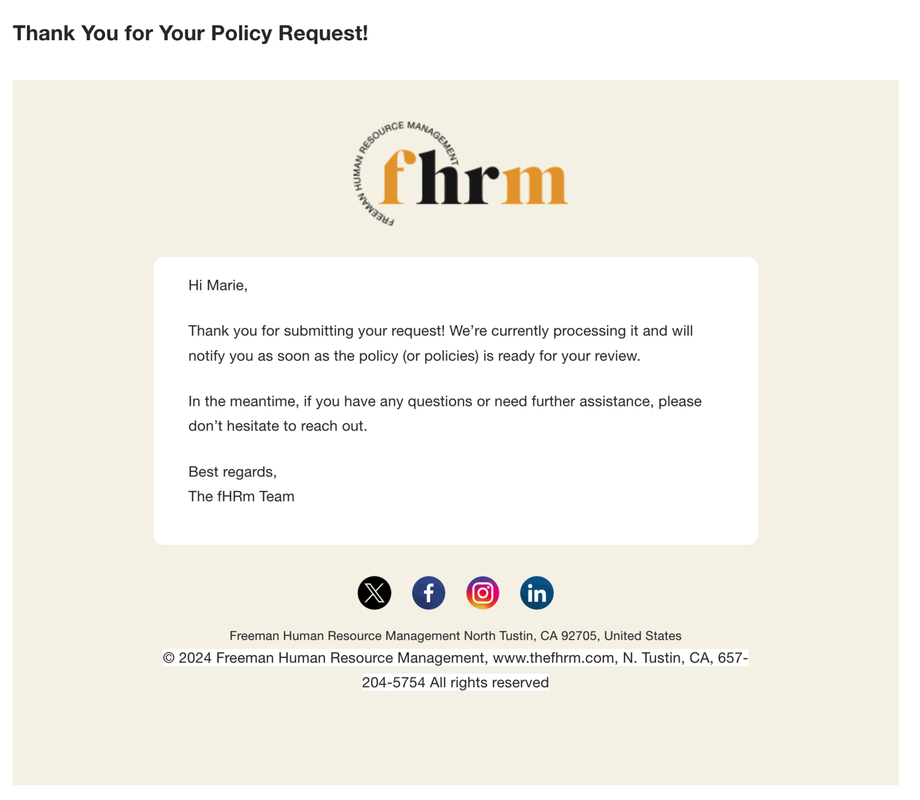
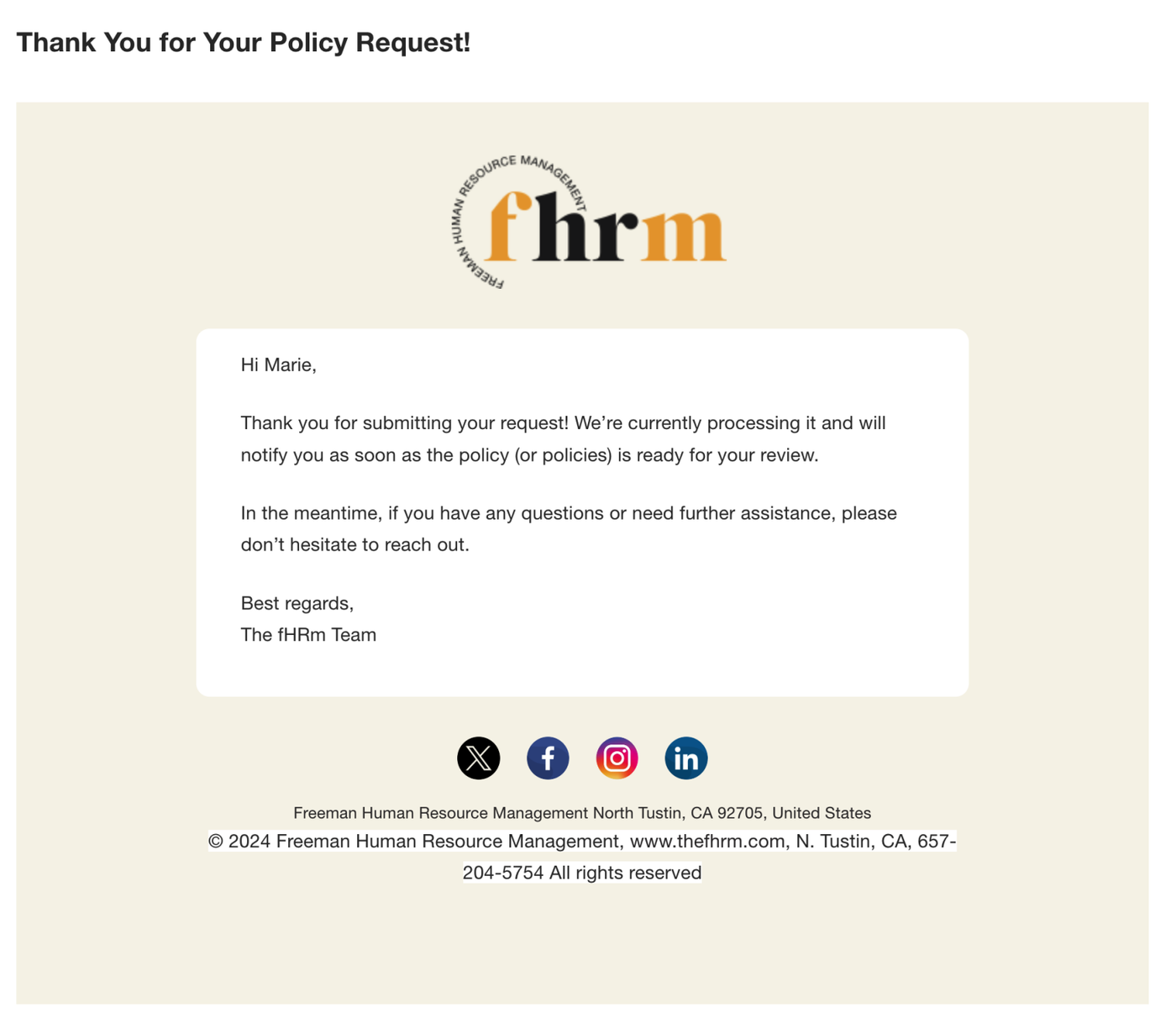
Upon submission, you will receive an email confirmation of your request.
You will also be redirected back to your dashboard.
Purpose
This SOP provides a comprehensive guide for admins on how to manage incoming policy requests, complete related tasks, and finalize projects.
Admin Process:
Navigate to 'Request All Requests':
Begin by accessing the Request All Requests section on your dashboard.
Locate the new policy request, which will provide access to the associated task.
Complete the task as required:
Review the task details and fulfill the request based on the specific requirements.
Review the Policy Request:
This is an internal task designed for the admin team.
It does not trigger any automation, so it requires manual review and completion by an admin team member.
Draft and Submit the Policy Notification:
Prepare the policy notification draft.
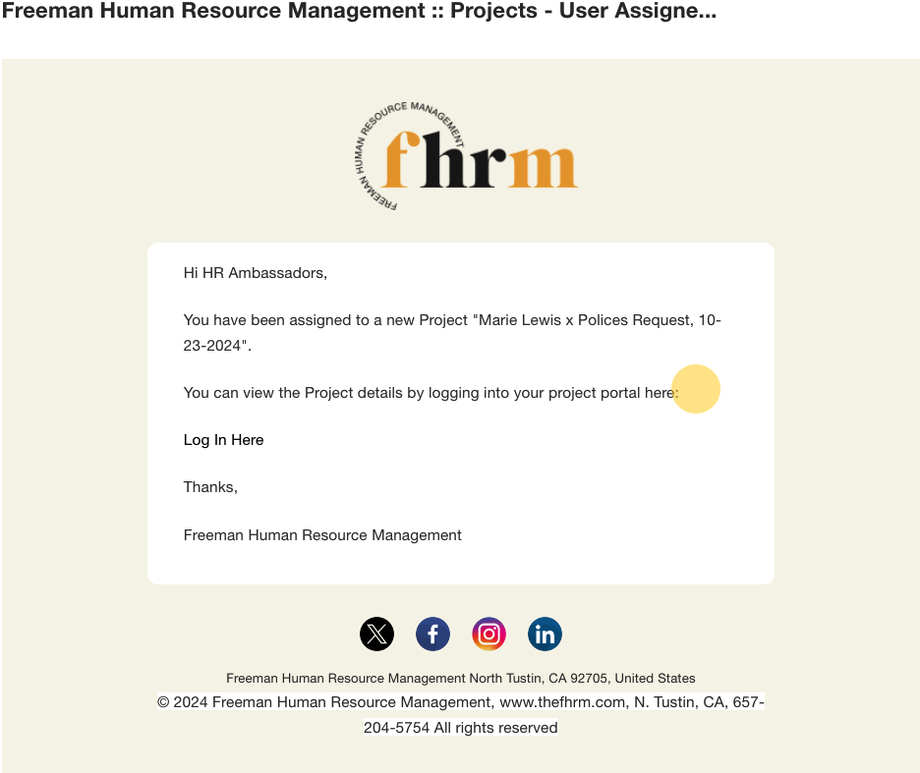
Once drafted, send an email notification to the end user or target client.
End User Review:
Once the email is sent, a task will be available for the end user to review the policy request.
Send the Bill:
After the end user has reviewed the request, proceed to send the bill.
The bill can be sent before or after completing other tasks, depending on the workflow.
Finalize the Project:
Mark all tasks as complete.
Once all tasks are finalized, close the project.
SuiteDash Links:
Additional Notes:
Ensure that tasks are logged and updated promptly.
Use consistent communication templates to maintain uniformity.
Keep track of task completion to ensure no step is overlooked.
Ensure policy requests are processed within 48 hours.
Use consistent logging methods when documenting policy fulfillment.